

Advertisements
Nearly 60% of professionals lose over an hour each day to digital clutter. This hidden productivity tax affects deadlines and downtime.
This how-to guide shares practical, step-by-step strategies to stay digitally organized. It helps professionals, freelancers, small business owners, students, and parents in the United States.
Advertisements
These groups often juggle heavy digital workloads. The goal is to reduce clutter, save time, and boost focus with realistic decluttering tips.
Readers will learn to build streamlined workflows and clear digital workspaces. The guide also covers secure file management and better communication habits.
Key topics include understanding digital organization, choosing tools, and setting up a workspace. Others cover time management, communication, file strategies, calendars, security, automation, healthy habits, and regular evaluation.
Use the guide step-by-step for steady progress or jump to sections matching your current problems. Each section offers actionable tips and tool suggestions for quick, lasting change.
Key Takeaways
- This guide offers clear steps for busy people to regain time and focus.
- Practical tactics include workspace setup, file naming, and time-blocking.
- Decluttering tips target common pain points for professionals and parents alike.
- The guide balances quick fixes with long-term routines for lasting results.
- Readers can follow sections in order or jump to topics needing immediate attention.
Understanding Digital Organization
Busy professionals juggle email, documents, calendars, passwords, and messaging across multiple devices every day. A clear plan for managing these digital assets cuts wasted time and reduces stress. Practical digital organization tips make daily work flow smoothly and free up time for more important tasks.

What is Digital Organization?
Digital organization means arranging, labeling, storing, and managing files, emails, apps, calendar entries, and passwords. The goal is to keep them findable, secure, and easy to act on. It relies on simple principles: consistency, simplicity, accessibility, backups, and strong security.
Good systems use clear naming, logical folders, and predictable tags. These techniques reduce effort when searching and make teamwork easier in Microsoft 365 or Google Workspace.
Why It Matters for Busy People
Disorganization wastes time. Workers lose minutes daily hunting for files or switching tasks. This adds up to hours weekly and affects deadlines, client work, and team flow.
Remote and hybrid work increase these risks. When teams use Slack, Zoom, and shared drives, messy digital spaces cause duplicated work and miscommunication. Solid digital organization improves clarity, speeds responses, and lowers stress.
Key Benefits of Staying Organized
Being organized leads to clear benefits. Faster information retrieval raises productivity. Teams collaborate better with fewer version conflicts. Secure backups aid compliance and disaster recovery.
Lower cognitive load helps focus on priority tasks. Over time, good digital habits save hours, support meeting deadlines, and improve wellbeing.
Effective strategies include consistent file names, logical folders, regular audits, and automations that archive or tag items. These create a reliable system that grows with work demands and supports success and calm daily routines.
Choosing the Right Tools
Busy professionals do best when tools fit their daily workflow. Seeing clear tool categories helps pick the right mix. This mix works best with digital organization tips.
The right tools cut down on friction. They also save time and energy.
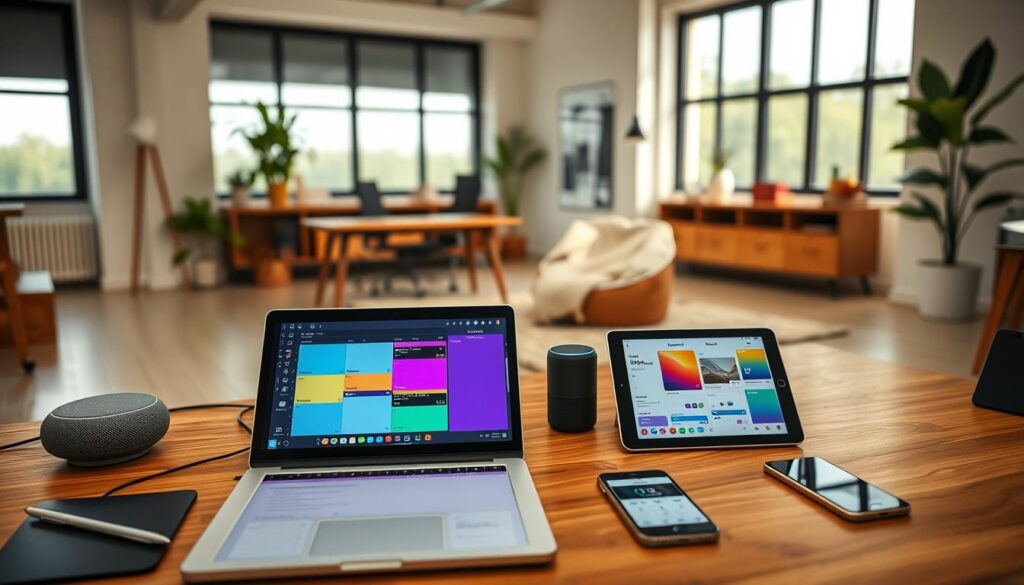
Overview of Digital Organization Tools
File storage, task and project management, note-taking, and password managers meet specific needs in daily work. Cloud services like Google Drive and OneDrive handle shared files well.
Task managers such as Todoist and Asana keep your priorities clear. Note apps like Notion and Evernote store and organize reference materials.
Password managers such as 1Password keep your login details safe. Communication tools like Slack and Zoom help teams stay connected easily. Automation platforms like Zapier and Make link apps to cut down repetitive tasks.
Popular Apps for Busy Individuals
Google Workspace (Drive, Docs, Calendar) is great for shared editing and simple teamwork. Microsoft 365 (OneDrive, Outlook, Teams) suits those who use Windows and Office products.
Notion gives a flexible space for notes, databases, and light project tracking. Evernote is good for quick note-taking and searching.
Todoist focuses on managing personal tasks. Asana and Trello offer visual tools for team projects. Slack cuts down on long email chains. Zoom supports reliable online meetings.
1Password or LastPass keeps your passwords secure. Zapier and Make automate workflows between different apps to save time.
Evaluating Tool Features
Pick tools that are easy to use and work well on Windows, macOS, iOS, and Android. Fast search and sharing features speed up teamwork.
Security, like encryption and two-factor login, keeps data safe. Look for apps that connect with others through APIs or Zapier to boost features.
Think about cost, growth potential, offline use, and backup options before choosing. Use a core group of tools—a cloud storage, calendar, task manager, and password manager.
Add one or two specialty apps to avoid too many tools. This approach fits teams of all sizes and helps digital organization grow smoothly.
Try free versions first to see if they suit your needs. Keeping tools simple and clear helps build lasting habits in organizing digital work.
Setting Up Your Digital Workspace
A clear digital desk helps busy people work faster and stress less. This short guide shows practical steps for creating a primary workspace.
It also covers arranging folders and files, and ways to keep the desktop tidy. The guide uses tools like Notion, Google Drive, OneDrive, Hazel, and macOS Spaces to make the process clear.
Designing an Efficient Digital Workspace
Think of a central environment where most work starts. A Notion workspace, Google Drive root folder, or a user account works as that digital desk.
Keep the workspace lean by removing unused widgets and closing background apps.
Use virtual desktops like macOS Spaces or Windows Desktops to separate tasks. Set a start-up routine so key apps open on login. Automate app launches in system settings to save time.
Organizing Your Folders and Files
Start with a simple folder hierarchy by project or role. Aim for three to four levels max. This keeps navigation fast and reduces lost files.
Use standardized naming like 2026-06-03_project_client_description_v1 for clarity. Add metadata when platforms support it, such as Google Drive or OneDrive. Separate active and archive files into different folders to access them quickly.
Use cloud folder structures for collaboration. Keep templates for recurring projects. Use version control: include version numbers and dates in file names. Back up important data to OneDrive, Google Drive, or a backup service regularly.
Best Practices for Desktop Organization
Limit desktop icons to your immediate priorities. Create one Work folder for active files. Pin frequent apps to the dock or taskbar for quick access.
Schedule a weekly tidy-up to move completed items into archive folders. Use automation apps like Hazel on macOS or Windows rules to sort downloads. Name screenshots consistently and store them in one screenshots folder.
Set default save locations in apps. Use document templates to speed up creation. Document the folder structure in a README file to help teammates follow the system. These steps create a practical digital organization guide for busy schedules.
Time Management Techniques
Busy professionals get more done when they combine clear planning with reliable tools. This section covers practical digital strategies that help prioritize, schedule, and protect focus. Short steps and real apps make the process easy to adopt.
Prioritizing Tasks with Digital Tools
Teams and individuals use the Eisenhower matrix and MoSCoW to organize work inside apps like Todoist, Asana, and Microsoft To Do. Tagging, labeling, or setting priority fields helps surface urgent items. Clear due dates reduce confusion and speed decisions.
Daily and weekly reviews bring priorities back to attention and stop small tasks from piling up. The two-minute rule helps with tiny items: if it takes less than two minutes, do it now. For larger tasks, defer or delegate within the app to keep the list focused.
Scheduling Your Digital Tasks
Link tasks to calendar events and assign realistic times to avoid overbooking. Google Calendar and Outlook work well with Asana Calendar view or Todoist integrations, so tasks and meetings show side by side.
Use reminders and recurring task features for routine work. Set buffer times between events to avoid back-to-back fatigue. Color-code events to show deep work, admin, and meetings at a glance.
Utilizing Time-blocking Methods
Time-blocking creates set stretches for focused work, email, and calls. Block sizes vary by task type: longer blocks for deep work, shorter for admin. Tools like Google Calendar or Microsoft Outlook make color coding easy.
Batch similar tasks together to reduce switching focus. Add short buffers around meeting blocks. Apps like Clockwise can move flexible meetings to optimize uninterrupted blocks automatically.
Use digital timers or Pomodoro apps to protect blocks and track progress. Regular reviews refine the plan and keep digital strategies aligned with real priorities.
- Tips for digital organization: tag tasks, set clear due dates, and run weekly reviews.
- How to stay organized digitally: link tasks to calendars, use time blocks, and apply the two-minute rule.
- Use a mix of apps and habits to sustain momentum across busy days.
Streamlining Communication
Busy teams often lose time due to unclear channels and many interruptions. A clear set of rules helps teams decide when to use synchronous tools. It also guides when to switch to asynchronous work.
This section shares practical steps to manage email, meetings, and notifications. These steps help people focus on meaningful work.
Tools for effective team communication
Teams should use tools that fit each task. For real-time talks, Zoom and Microsoft Teams are good for meetings and quick decisions.
For threaded collaborations that reduce context switching, use Slack channels, Microsoft Teams channels, email, and Loom. These let people reply on their own time.
Agreeing on response times and channel purpose lowers confusion. Use shared Google Docs or Microsoft OneDrive for editing instead of long email threads.
This approach matches best digital organization practices. It keeps project work in one place.
Organizing email for better efficiency
Email is easier to manage with clear rules and routines. Use Gmail labels, filters, and priority inbox, or Outlook rules and Focused Inbox to sort messages automatically.
Create folders and filters to handle newsletters, receipts, and internal updates. Practice aggressive archiving and deleting to keep the inbox clean.
Check email at set times to avoid constant interruptions. Use templates and canned responses to reply faster to common questions.
Unsubscribe from unwanted lists with tools like Unroll.Me or by bulk-unsubscribing manually. This supports digital decluttering tips.
Managing notifications effectively
Adjust notifications for each app. Turn off nonessential alerts and use Do Not Disturb during focus time to reduce interruptions.
Use iOS or Android notification summaries and Focus modes on macOS to group alerts at convenient times.
Set priority contacts who can bypass silent mode for urgent issues. Agree on which messages need quick attention and which can wait.
This approach reduces context switching. It supports best practices in digital organization described in this digital organization guide.
File Management Strategies
Effective file management keeps work moving and reduces the time spent searching for files. This section gives clear steps. It covers naming, versioning, auditing, and backing up files.
The guidance fits busy schedules. It also aligns with common digital organization strategies.
Creating a Consistent File Naming System
Use a simple and predictable standard pattern. A good format is ISO date (YYYY-MM-DD), client or project name, short description, and version tag.
Example: 2026-06-01_ClientName_Project_Report_v01.docx. This method makes sorting and searching faster.
Avoid spaces and special characters to ensure compatibility. Replace spaces with underscores or hyphens. Document the convention in a shared file for collaborators.
Version Control for Important Documents
Use clear file names and timestamps for versioning, especially for non-technical teams. Save key milestones as separate files: v01, v02, vFinal.
For code projects, use Git. For documents, use Google Drive or OneDrive version history to restore earlier drafts.
When restoring versions in the cloud, label them clearly. Note why a rollback happened to keep collaboration clear.
Regularly Auditing Digital Files
Schedule audits monthly or quarterly, depending on workload. During audits, delete duplicates, archive finished projects, and update metadata.
Use tools like Duplicate Cleaner or Gemini to find duplicates faster. Keep an archiving policy to separate archived from deleted items.
Retention rules help with compliance. They also free up storage space. Generate storage reports to spot large or rarely used files for review.
Combine local backups with cloud backups for safety. Use an external drive and consider services like Backblaze or Carbonite for critical data.
This layered backup supports recovery from hardware failures and accidental deletions.
Creating a Digital Calendar
A well-built calendar cuts planning friction and makes busy days manageable. This short guide shows how to pick the right tool, link tasks so deadlines stay visible, and schedule with focus. The advice blends practical digital workspace organization tips with a hands-on approach from popular calendars.
Choosing a Calendar Tool
Google Calendar, Microsoft Outlook Calendar, and Apple Calendar lead in cross-device sync and email integration.
Fantastical and other third-party apps add natural language entry and richer views. Choose a calendar that fits your device ecosystem, sharing needs, and links to mail or task apps.
Check platform match, ease of inviting others, and privacy settings. Teams with Microsoft 365 find Outlook best. Gmail and Android users often prefer Google Calendar. Mac and iPhone users get smooth syncing with Apple Calendar.
Integrating Task Management with Calendars
Linking Todoist, Asana, or Microsoft To Do brings tasks into calendar views where deadlines stay clear.
Bi-directional sync keeps updates consistent between task apps and events. Use calendar plugins or native tools to show tasks next to meetings.
Turn task lists into calendar blocks to reserve time for finishing work. Sync due dates and add reminders to avoid last-minute rushes. Enable two-way links so updates on either side change automatically.
Techniques for Effective Scheduling
Block uninterrupted time for deep work. Add short buffer slots before and after meetings. Try 25- or 50-minute meeting templates to cut overruns.
Color-code event types to make reading the week at a glance simple. Publish shared team calendars to boost visibility and cut conflicts.
Use automated booking tools like Calendly or Microsoft Bookings to end back-and-forth emails. Set time zones correctly and adjust reminders to prevent notification overload.
These steps create a practical digital organization guide for busy calendars. Applied regularly, they improve clarity and make days easier to manage.
Staying Secure Online
Digital organization works only when data stays protected. Busy professionals must include security in daily routines. Small steps reduce risk to clients, partners, and intellectual property.
These steps also support compliance with legal rules.
Importance of Digital Security
Data breaches and identity theft can undo hours of careful work. Firms like Microsoft and Google warn about account compromises. These breaches cost time and damage reputations.
Strong digital security guards personal and business information from theft or accidental exposure.
Best Practices for Online Safety
Use strong, unique passwords stored in trusted password managers like 1Password, Bitwarden, or LastPass. Enable two-factor authentication for all critical accounts.
Keep operating systems and apps updated. Install trusted antivirus or endpoint protection on work devices. Avoid public Wi-Fi without a VPN. Treat unexpected emails as possible phishing attempts.
Maintain tested backups and turn on version history for important files. Document incident response steps so teams know how to act when data is lost or compromised.
Tools for Secure File Sharing
Choose encrypted cloud services with detailed permission controls. Google Drive and Microsoft OneDrive let users set view-only links and set expiration dates.
Dropbox offers password-protected links. WeTransfer Pro adds password options for transfers. For enterprise needs, consider Box or Citrix ShareFile to enforce policies and audit sharing settings.
Regularly review who has access. Remove permissions that are no longer needed.
| Use Case | Recommended Tools | Key Controls |
|---|---|---|
| Personal backups | Google Drive, OneDrive | Version history, encryption at rest |
| Client file transfers | Dropbox, WeTransfer Pro | Password links, expiration dates |
| Team collaboration | Box, ShareFile | Granular permissions, audit logs |
| Password management | 1Password, Bitwarden, LastPass | Secure vaults, unique passwords, 2FA |
Using best practices in digital organization and security keeps daily work safer. Regular audits and practical tools keep systems tidy and lowers the risk of costly incidents.
Automating Routine Tasks
Busy professionals gain time and clarity when routine work runs itself. Automation tools remove repetitive steps and reduce errors. They also help by routing files and notifications to set places.
Starting small makes automation and digital organization manageable and safe.
Automation platforms like Zapier, Make (Integromat), Microsoft Power Automate, Gmail filters, Outlook rules, and IFTTT offer low-code ways to link triggers and actions.
Users select an event, such as a new email or calendar entry. Then, they choose an outcome, like saving an attachment or creating a task in Asana.
Security matters when connecting accounts. Limit permissions for automation tools and use service accounts for shared workflows. Regularly review access to avoid unwanted data exposure.
Practical automations work best if they solve one friction point. Examples include auto-saving email attachments to Google Drive or OneDrive. Others are creating tasks from starred messages or syncing calendar events to project boards.
Backing up phone photos to cloud storage is another helpful automation example.
- Move downloaded invoices to a labeled expense folder automatically.
- Generate weekly sales or project reports and email them to stakeholders.
- Post task updates from Trello or Asana to Slack channels for team visibility.
- Rename files with a timestamp or project code as they enter a folder.
Each automation should have a short workflow note. Monitor each run for failures and set alerts for broken automations. This helps maintain trust in the system.
Benefits include time savings, fewer manual mistakes, and consistent process use when saving receipts or filing contracts. These gains free time for strategic work and reduce mental load.
When designing automations, combine them with digital decluttering tips like scheduled inbox cleanups and rules that route messages to folders. This hybrid approach blends steady housekeeping with automation to keep systems tidy and efficient.
Building Healthy Digital Habits
Busy people often feel pulled in many directions by apps, alerts, and endless tabs. Recognizing when digital use overloads you helps protect your focus, energy, and sleep.
This short guide offers clear steps to reduce screen time. It also helps build mindful routines that fit a hectic schedule.
Recognizing digital overload
People notice constant notifications, unfinished tasks, and mental fatigue. Sleep schedules shift later because screens stay on at night. Over-reliance on many apps fragments attention and reduces productivity.
Signs include frequent context switching, a backlog of unread messages, and rising stress when devices are unavailable. Spotting these patterns is the first step in any digital organization guide.
Tips for reducing screen time
Set device-free periods each day. Use built-in tools like Screen Time on iOS or Digital Wellbeing on Android to enforce limits.
Batch social media and email checks into two or three focused sessions. Avoid constant monitoring to improve your focus.
Prefer short phone or audio calls for quick clarifications instead of long message threads. Follow ergonomic breaks and the 20-20-20 rule to ease eye strain.
Every 20 minutes, look at something 20 feet away for 20 seconds. This practice helps reduce digital eye strain.
Mindfulness practices for digital use
Start work sessions with clear intent. Use single-tasking or Pomodoro intervals to keep focus.
Schedule a weekly digital decluttering session to archive, delete, or consolidate files and apps.
End each day with a ritual that closes active work: mute notifications, log tasks for tomorrow, and switch devices to restful mode.
Apps such as Forest, Focus@Will, Headspace, and Calm support focus and calm during transitions.
Behavioral change begins small. Track progress, adjust limits, and improve systems that match priorities.
Combining digital decluttering tips with these routines helps you stay organized digitally in ways that fit real life.
| Habit | Action | Tools |
|---|---|---|
| Limit notifications | Turn off nonessential alerts and set focus modes for work periods | iOS Focus, Android Do Not Disturb |
| Batch checking | Schedule specific times for email and social apps | Calendar, Gmail, Outlook |
| Weekly cleanup | Delete unused apps, archive old files, tidy inboxes | Google Drive, Dropbox, Apple Files |
| Focus sessions | Use Pomodoro or single-task blocks with short breaks | Forest, Focus@Will, TomatoTimer |
| End-of-day ritual | Close tasks, mute notifications, review priorities for tomorrow | Todoist, Microsoft To Do, Apple Reminders |
Evaluating Your Digital Organization
To improve daily flow, start with a quick audit. Map current tools and storage spots.
Measure how long it takes to find files or fix recurring issues. Use storage analytics and app reports.
Ask collaborators about pain points and check sharing permissions and security settings. This gives a clear view.
Next, set clear goals using SMART criteria. For example, reduce file retrieval time by 50% in three months.
Or consolidate to three core apps within 60 days. Prioritize quick wins like cleaning the Downloads folder.
Enable a password manager and plan longer projects like migrating storage or automating workflows. Balance small wins and strategy.
For ongoing success, create a review schedule: weekly quick checks and quarterly audits. Document procedures and naming rules in a shared SOP.
Train team members on standards. Track time saved, missed deadlines reduced, and lower inbox count. Keep a change log for tools and processes.
Patience and small changes will help turn digital organization tips into lasting habits.