

Advertisements
More than 50% of Americans worry about online privacy. Yet, many still use weak passwords or unprotected public Wi‑Fi. This guide offers practical digital privacy tips anyone in the United States can use today.
This article covers key internet privacy practices. It explains creating strong passwords, enabling two‑factor authentication, and avoiding risky Wi‑Fi. It also discusses updating software, tightening social media settings, and choosing privacy‑focused browsers.
Additionally, it covers managing cookies, monitoring your online footprint, and recognizing phishing attacks. Readers will find clear, actionable steps to reduce identity theft risk and protect data.
Advertisements
These tips follow guidance from the National Institute of Standards and Technology (NIST), the Federal Trade Commission (FTC), and major vendors like Microsoft and Google. It also includes practical tools such as password managers and trusted VPN providers.
This how‑to guide builds a layered defense. It starts with foundational concepts, moves to hands‑on tools, then to monitoring and response. It is made for internet users, remote workers, and small business owners who want trusted privacy practices.
Key Takeaways
- Apply simple digital privacy tips to cut the risk of identity theft.
- Combine strong passwords with two‑factor authentication for better protection.
- Avoid public Wi‑Fi or use a trusted VPN to secure connections.
- Keep software and browsers updated to close known security gaps.
- Review social media and app permissions to limit data exposure.
- Use privacy‑focused browsers and clear cookies regularly to reduce tracking.
- Monitor accounts and learn to spot phishing to respond quickly to threats.
Understanding Digital Privacy
Digital privacy means control over personal information shared online. It includes how data is collected, stored, and who can access it.
This section explains core ideas to help readers adopt good internet privacy habits. It focuses on protecting personal information.

What is Digital Privacy?
Digital privacy covers many types of data. Examples include names, Social Security numbers, account credentials, location data, browsing history, and app metadata.
Each type carries different risks and needs specific attention for protection.
Managing passwords, understanding app permissions, and limiting data shared are basic steps.
Think of each account and device as part of a larger system that can expose personal details.
Why Does It Matter?
Poor privacy habits can cause identity theft, financial loss, targeted scams, and damage to reputation. They reduce control over personal choices.
Data breaches at companies like Equifax and Yahoo reveal risks for millions of people.
Regulatory actions like FTC enforcement and California’s CCPA/CPRA protect consumers and shift responsibility to businesses.
Still, individuals must adopt good privacy practices to lower personal risk and protect information.
Key Terms to Know
Encryption scrambles data so only authorized users can read it. It protects messages and stored files.
Two-factor authentication (2FA) and multi-factor authentication (MFA) add extra verification steps beyond passwords to reduce account takeover risk.
A VPN hides a device’s IP and encrypts traffic on public networks. It helps when using coffee shop or airport Wi-Fi.
Cookies are small files sites use to remember preferences. Tracking and ad profiling use cookies to follow online behavior over time.
Metadata includes hidden details about files, calls, or photos. It can reveal location and timing even if content seems harmless.
A breach is unauthorized system access. Phishing is a scam that tricks people into revealing credentials or clicking malicious links.
Password managers store and fill strong, unique passwords across accounts. HTTPS and end-to-end encryption protect data in transit and keep communications private.
Knowing these terms helps readers build layered defenses and stay cautious.
Assume data collection is happening. Minimize what you share, verify sources before responding, and use technical tools with careful habits.
This helps protect your digital footprint and personal information.
Use Strong Passwords
Strong credentials form the first line of defense in digital privacy tips. A single weak password can expose email, bank accounts, and other services that hold sensitive data.
The guidance below helps readers create durable keys and manage them with tools built for personal information safeguarding.
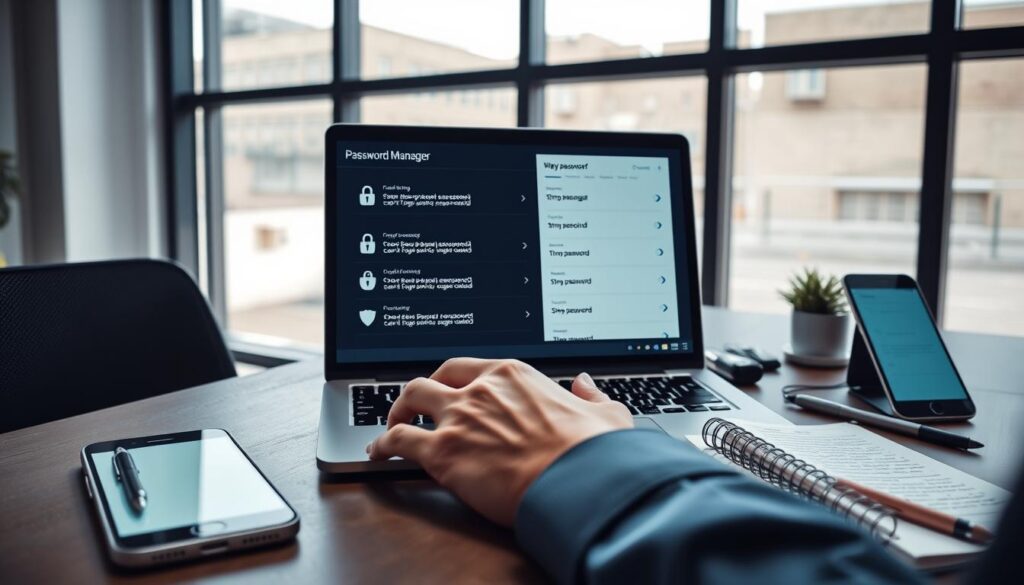
Creating a Secure Password
Passwords should be at least 12 characters long. They must mix uppercase letters, lowercase letters, numbers, and symbols. Avoid common words, predictable patterns, and reused passwords.
Passphrases made from several unrelated words are easier to remember and hard for attackers to guess. Use unique passwords for every account to stop one breach from spreading to others.
Password Managers: A Useful Tool
Password managers such as 1Password, Bitwarden, LastPass, and Dashlane generate and store strong, unique passwords. They can autofill credentials across devices and perform audits to find weak or reused passwords.
Users can choose local vaults or cloud-based syncing. Zero-knowledge encryption means the provider cannot read stored passwords when set up correctly. Built-in browser options like Google Password Manager and Apple iCloud Keychain offer convenience.
Third-party tools often give stronger audit features and cross-platform support. Choosing reputable providers matters a lot for personal information safeguarding.
Changing Passwords Regularly
Current best advice says to change passwords after a suspected breach. Avoid frequent forced changes that encourage weak, similar passwords.
If a breach affects an account, change that password immediately. High-risk services such as email, banking, and healthcare need extra attention and regular review. Pair a strong master password with two-factor authentication to secure a password manager vault.
Practical Steps
- Enable a password manager and set a strong master password protected by 2FA.
- Run an audit to identify and replace reused or weak credentials.
- Use password health checks built into browsers or manager tools to monitor breaches.
- Update compromised passwords right away and review recovery options for accounts.
| Action | Why It Helps | Recommended Tools |
|---|---|---|
| Create 12+ character passphrases | Makes brute-force and dictionary attacks much harder | No specific tool needed; try Diceware-style methods |
| Use password managers | Generates unique credentials and stores them securely | 1Password, Bitwarden, LastPass, Dashlane, Google Password Manager, iCloud Keychain |
| Enable two-factor on the vault | Adds a second barrier to protect stored secrets | Authenticator apps, security keys, SMS as fallback |
| Audit and change after breaches | Limits damage from exposed passwords | Password manager health checks, Have I Been Pwned alerts |
Enable Two-Factor Authentication
Adding a second verification step is an easy way to boost online security. It adds a layer with a code, push notification, biometric scan, or hardware key. This change improves account defense and supports broader security measures.
What is two-factor authentication?
Two-factor authentication, or 2FA, needs two different proofs to verify identity. One proof is something the user knows, like a password. The other proof is something the user has, like a phone, or something the user is, such as a fingerprint.
Methods include SMS codes, authenticator apps, push notifications, and hardware keys like YubiKey and Google Titan.
How to set it up
Users should go to account or security settings on services like Google, Microsoft, Apple, Facebook, or banks. Then, they select two-step verification or multi-factor authentication and pick a method. Authenticator apps like Google Authenticator and Authy are good choices.
Hardware keys offer stronger protection for high-risk accounts.
How to set it up
- Sign in and go to Security or Account settings.
- Choose two-step verification or multi-factor authentication.
- Select a preferred method: authenticator app or hardware key.
- Register devices and test the setup.
- Save recovery codes and set backup methods to avoid lockouts.
Benefits of using 2FA
Two-factor authentication greatly cuts the risk of account takeovers even if passwords leak. Industry reports show big drops in unauthorized access when 2FA is active. The extra step stops many automated and manual attacks using stolen credentials.
Benefits of using 2FA
There are some trade-offs with usability and possible recovery issues. Users should choose reliable backup options and register alternate devices. Prioritizing 2FA for email, financial accounts, password managers, social media, and work services gives the best protection.
Be Cautious with Wi-Fi Networks
Public Wi‑Fi can be convenient. However, it can expose your credentials, private messages, and browsing activity to attackers. Following clear internet privacy best practices reduces risk when using unfamiliar networks.
On open networks, criminals can perform man-in-the-middle attacks. They also eavesdrop on unencrypted traffic. Session hijacking and fake hotspots are common threats.
Devices set to connect automatically might join malicious access points without notice. This increases the risk of data theft and privacy breaches.
Risks of public Wi‑Fi
- Interception of unencrypted data, including login credentials.
- Session hijacking that grants access to active accounts.
- Malicious hotspots that mimic legitimate SSIDs to harvest information.
- Malware injection through compromised network services.
Use a VPN for security
A virtual private network encrypts your traffic and hides your IP address. Providers like NordVPN, ExpressVPN, Proton VPN, and Mullvad offer AES‑256 encryption, no‑logs policies, and kill switches.
Jurisdiction and independent audits matter when assessing trust. Using a VPN protects data on public Wi‑Fi but is not foolproof. Users should still prefer HTTPS sites and avoid sensitive transactions on unknown devices.
Identifying secure networks
- Choose networks using WPA2 or, preferably, WPA3 encryption.
- Verify the SSID with staff at cafés, airports, or hotels before connecting.
- Avoid networks with no password or odd names that impersonate venues.
- Check for HTTPS in the browser address bar when signing in to services.
WPA3 improves handshake protection and resists offline password guessing better than WPA2. It offers stronger safeguards for modern devices when available.
Practical secure Wi-Fi tips include turning off automatic Wi‑Fi connections. Disable file and printer sharing on public networks. Use mobile data for banking or sensitive tasks if unsure about network safety.
| Threat | What it Does | Simple Defenses |
|---|---|---|
| Man-in-the-middle | Intercepts and alters data between device and server | Use a VPN, prefer HTTPS, confirm SSID with staff |
| Eavesdropping | Reads unencrypted traffic like login forms | Avoid public logins, use VPN for security, disable auto-connect |
| Session hijacking | Takes over an active web session to access accounts | Log out of sites, clear active sessions, use 2FA when possible |
| Malicious hotspot | Pretends to be legitimate network to capture data | Verify network name, avoid networks with no password, use vetted VPNs |
Regular Software Updates
Keeping devices current is one of the best ways to protect against cyberattacks. Vendors like Microsoft, Apple, Google, and router makers release patches that fix code flaws. Attackers scan unpatched systems to deploy ransomware and malware. Timely updates help reduce this risk.
Importance of Keeping Software Updated
Security patches close holes that hackers use to attack. Big breaches happened because systems ran outdated software like Windows or Apache Log4j. Missing one update can cause major problems.
Updates also improve stability and performance. They add protections against phishing, sandbox escapes, and browser exploits. Treat updates as a key part of cybersecurity at work and home.
Setting Automatic Updates
Turn on automatic updates for operating systems. Use Windows Update, macOS Software Update, iOS, and Android settings. For routers and IoT devices, check firmware update options in the admin portal.
Schedule updates for off-hours to avoid disrupting work. Test updates in a controlled environment before wide use on critical systems. Auto installs combined with staggered rollouts improve security and uptime.
Updating Applications and Browsers
Browsers must be updated often because they handle untrusted content. Keep Chrome, Firefox, Edge, and Safari current. Update extensions carefully, remove unused add-ons, and check permissions on mobile apps.
Maintain firmware on home routers and smart devices through manufacturer portals. Use vendors like Netgear, Linksys, Amazon, or Samsung. Subscribe to vendor advisories for urgent patches and apply them fast.
| Action | Why it Matters | Practical Tip |
|---|---|---|
| Enable auto-updates | Reduces window of exposure to known exploits | Turn on Windows Update, macOS Auto Update, iOS/Android auto-install |
| Regular device reboots | Completes installs and clears transient issues | Schedule nightly or weekly reboots for desktops and servers |
| Update browsers and extensions | Prevents drive-by and plugin-based attacks | Use built-in update checks and remove unused extensions |
| Router and IoT firmware | Protects network gateway and smart devices | Check manufacturer portals and apply firmware from trusted vendors |
| Subscribe to advisories | Gets alerts for critical patches and CVEs | Follow vendors and CERT or CISA notifications |
| Test critical updates | Reduces risk of outages from faulty patches | Use a staging environment for servers and business apps |
- Enable auto-updates for OS and major apps.
- Reboot devices regularly after updates.
- Keep browser updates current and trim extensions.
- Update router firmware and smart home devices from vendor portals.
- Subscribe to vendor advisories for high-priority patches.
Limit Personal Information Sharing
Controlling what appears online helps reduce risks like scams and identity theft. This short guide shows practical steps for privacy protection.
It covers adjusting account controls, curbing oversharing, and pruning third-party access to safeguard your personal data.
Understanding privacy controls on social platforms
On Facebook (Meta), Instagram, X, TikTok, and LinkedIn, users can set profiles to private. They can also restrict who sees friend or follower lists.
Each platform offers options to turn off ad personalization and stop profiles from showing in public search engines.
Users should review tagged photos and mentions often. Instagram and Facebook let you approve tags manually to avoid unwanted posts.
On LinkedIn, limit which profile sections strangers can see and hide your email from public view.
Avoiding oversharing online
Posting travel dates or copies of IDs creates risks for social engineering and account attacks. Wait to share vacation photos until after you return home.
Don’t publish answers to security questions like a mother’s maiden name or first pet. Using a fake name or leaving fields blank reduces exposure.
Managing account permissions
Audit connected apps on Google, Facebook, and Apple regularly. Remove access for apps you no longer use.
When authorizing apps, give only the permissions needed. For example, a calendar app should access only calendar data.
On mobile devices, check permissions for location, camera, microphone, and contacts. Remove location access for apps that don’t need it.
Review connected apps often and revoke unnecessary permissions to protect your personal information.
Practical privacy hygiene
Use separate email addresses for public sign-ups and important accounts. Keep public profile info minimal and use fake names when it works.
These small steps are key to better privacy and safer online habits.
Use Privacy-Focused Browsers
Choosing the right browser is a simple step that improves online safety. Privacy-focused browsers offer stronger default settings. They also provide tools that limit tracking.
Readers should weigh ease of use against how much anonymity they need online.
Recommended Privacy Browsers
Mozilla Firefox offers Enhanced Tracking Protection and a large add-on library for extra controls.
Brave blocks ads and trackers by default and adds a rewards model for users who opt in.
Tor Browser uses onion routing to maximize anonymity on the web. Ungoogled Chromium and other privacy-tuned Chromium forks remove Google services and harden settings for fewer leaks.
Mainstream browsers such as Chrome, Microsoft Edge, and Safari can be hardened. Turning on strict tracking prevention reduces exposure. Disabling third-party cookies and limiting sync features also help while keeping familiar interfaces.
Comparing Features and Benefits
Key privacy features include tracker blocking, built-in ad-blocking, fingerprinting resistance, and native support for VPN or Tor.
Some browsers focus on speed and compatibility. Others prefer maximum privacy with slower load times.
Brave and Firefox balance performance with strong defaults. Tor offers top-tier anonymity but with slower speed and occasional site breakage.
Ungoogled Chromium variants keep Chrome compatibility but remove telemetry and background services.
Extension ecosystems matter a lot. A large library offers flexibility, but every extension adds risk.
Trusted privacy tools like uBlock Origin and Privacy Badger provide protection without heavy performance hits.
How Browsing History Affects Privacy
Saved browsing history and cookies help advertisers and data brokers profile users. These profiles reveal sensitive interests and habits users might not want shared.
Synced profiles or shared devices increase the chance of accidental exposure.
Private or incognito modes create short sessions, but do not hide activity from internet service providers or workplace networks.
Practical steps include adjusting privacy settings and disabling history retention. Using separate profiles or container tabs helps with different activities.
Firefox Containers isolate site data. Clearing cookies and history regularly limits long-term tracking.
Choose extensions carefully. Trusted options like uBlock Origin and Privacy Badger reduce tracker access.
Combining privacy-focused browsers with privacy tools provides layered protection while keeping browsing practical.
Understand Cookie Management
Websites store small data files in browsers to remember sessions, preferences, and tracking identifiers. These files are called cookies. Cookies help sites stay logged in and load preferred settings.
They also allow advertisers to follow behavior across sites. Good cookie management helps users balance convenience with control over their information.
What Are Cookies?
Cookies are tiny text files that websites place on a device. First-party cookies support site features like keeping a cart item or remembering language settings. Third-party cookies come from ad networks and analytics providers.
These third-party cookies enable cross-site tracking and targeted ads.
Managing Cookie Settings in Browsers
Major browsers offer built-in controls for cookie handling. Chrome users can block third-party cookies or set site-specific permissions from Privacy and Security. Firefox provides Enhanced Tracking Protection to limit trackers.
Safari uses Intelligent Tracking Prevention to reduce cross-site profiling. Extensions and privacy tools give more control. Cookie AutoDelete removes unused cookies.
Privacy add-ons block trackers and script-based fingerprinting. Private browsing mode starts a temporary session that clears cookies when closed.
Benefits of Clearing Cookies Regularly
Clearing cookies reduces tracking and cuts down on targeted ads. Users who clear cookies often see fewer personalized ads. This limits cross-site profiling.
The trade-off is losing saved logins and site preferences, which can be inconvenient. Targeted clearing limits disruption. Deleting cookies for selected sites keeps important sign-ins intact while removing trackers.
Cookie auto-deletion tools automate this process. This helps users keep convenience while staying in control. The industry is changing as some browsers phase out third-party cookies.
Google has proposed alternative approaches to replace cross-site tracking. Staying informed about these shifts helps users follow current privacy best practices and adapt cookie strategies.
Simple digital privacy tips like blocking third-party cookies and using site-specific clearing give real protection. Combining browser controls, extensions, and regular clearing forms a practical routine for better online privacy.
Monitor Your Online Footprint
Keeping an eye on online accounts helps people spot problems early. Regular review of account activity and privacy settings supports strong digital footprint management.
A short routine can cut risk. It also makes recovery easier if data is exposed.
How to check for data breaches
Use reputable breach-monitoring services like Have I Been Pwned and Google Account security alerts. Sign up for notifications from banks, credit card issuers, and major services.
When a breach shows up, change passwords right away and enable two-factor authentication. Monitor financial accounts for unusual charges. Consider placing a fraud alert or credit freeze with Equifax, Experian, or TransUnion if financial data is involved.
Regularly reviewing privacy policies
Periodically read privacy policies for services you use often. Learn what data they collect and how long they keep it.
Focus on the types of data collected, third-party sharing, retention periods, and user rights under laws like CCPA and CPRA. Use opt-out or data-access options when available. This habit supports better data protection and clearer choices about sharing.
Using tools for monitoring personal data
Choose from free and paid options to stay informed. Identity theft protection services such as LifeLock and IdentityForce offer monitoring and help with recovery.
Credit monitoring and email alerts add another layer of protection. Set up Google Alerts for name mentions to catch online exposure.
Consider privacy-focused data removal services that request deletions from data brokers.
An action plan to follow
- Set up breach alerts with Have I Been Pwned and enable Google security notifications.
- Review account activity and privacy policies at least once a month.
- Keep an inventory of online accounts and update passwords using a password manager.
- Use privacy tools and resources for data removal and identity monitoring.
- Apply key data protection tactics after any suspected breach: change passwords, enable 2FA, and contact financial institutions.
Educate Yourself on Phishing Attacks
Phishing is a major threat to both individuals and organizations today. Learning how phishing works helps improve your online security. Below, you can find common phishing methods, defenses, and reporting tips to lower risk.
Recognizing Phishing Tactics
Phishers send fake emails, texts (smishing), voice calls (vishing), and harmful links to steal information. Watch for urgent language, unexpected requests, wrong sender domains, bad grammar, and suspicious URLs. Spear-phishing and business email compromise (BEC) use personal details or fake executives to fool you.
Tips for Avoiding Scams
Check senders carefully by looking at full headers and domain names. Hover over links to see their real URLs before clicking. Avoid opening unexpected attachments and never enter passwords on pages from unknown links.
Use two-factor authentication for extra security. Confirm any money or data requests by contacting the requester through a known phone number. These steps can help protect your accounts.
Reporting Suspicious Emails or Links
Flag and report phishing scams in email clients like Gmail and Outlook. Forward suspicious emails to addresses like phishing@apple.com when needed. You should also report fraud to the Federal Trade Commission at ReportFraud.ftc.gov and inform your workplace IT or security team.
Always use browser safety features and antivirus software to scan files before opening them. Staying informed through sources like Krebs on Security and the SANS Internet Storm Center helps you keep your security updated. Following these trusted advisories ensures you adapt as phishing tactics change over time.